Manual Setup with Meta
Setup Flowbot manually using your Business Account credentials
Manual WhatsApp Setup
This guide covers the manual setup method for connecting your WhatsApp Business Account to FlowBot. For a quicker setup option, see our Embed Setup Guide.
When to use Manual Setup:
- You have existing Meta Business infrastructure
- You need custom token management
- You're comfortable with technical configuration
- You have specific security requirements
WhatsApp Setup
To integrate FlowBot with WhatsApp using a Business Account, you need to activate and configure a WhatsApp Business API account to obtain the required credentials: token, app_id, app_secret, phone_id and business_id. Follow these steps:
-
Create a WhatsApp Business Account
- Sign up at WhatsApp Business API.
- Complete the business verification process to access the API.
-
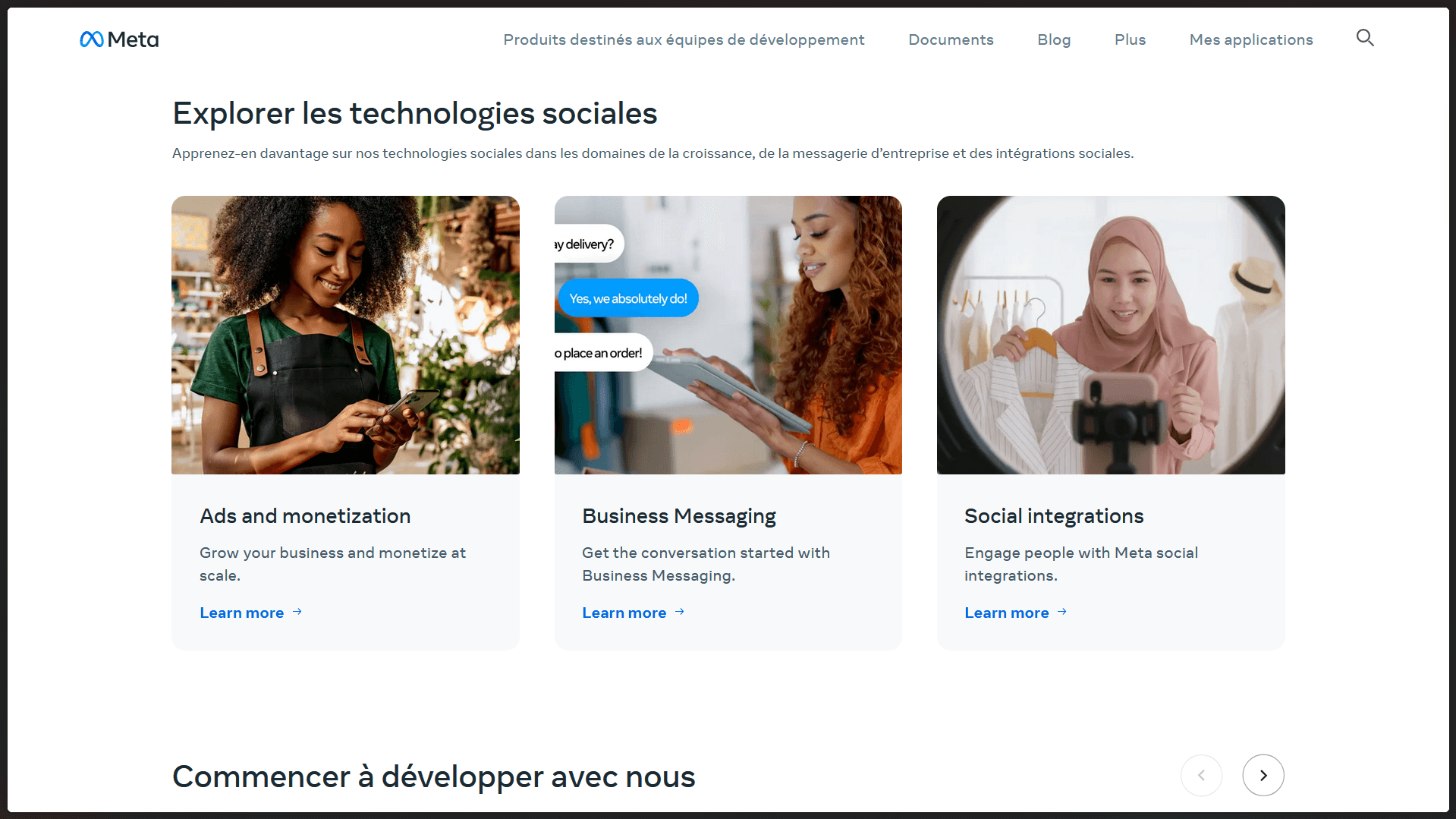
Set Up an App on Facebook for Developers
- Go to the Facebook for Developers portal.
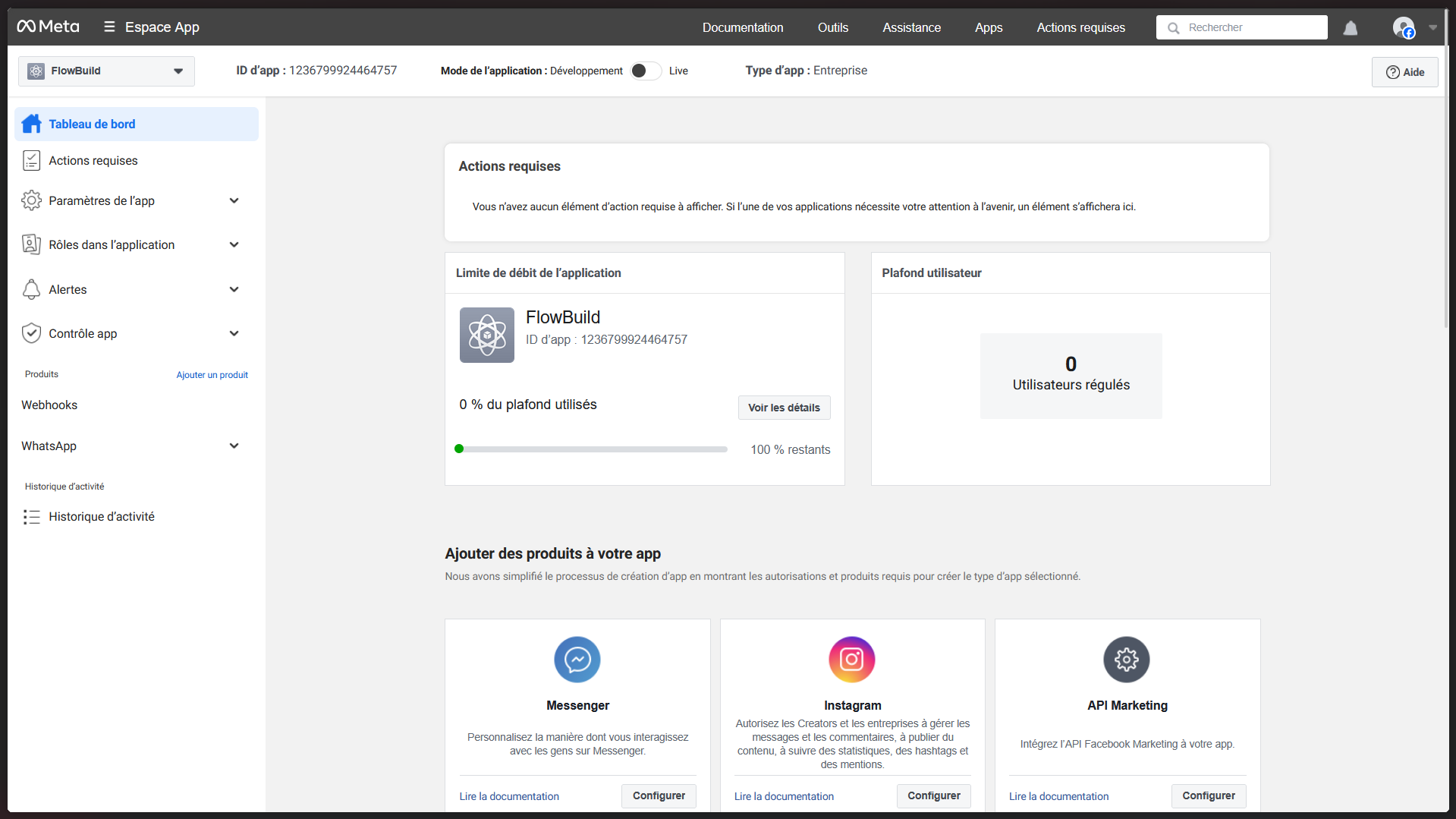
- Create a new app under 'My Apps' and select 'Business' as the app type.
- Note down the
app_idandapp_secretfrom the app dashboard. - In Add products to your app, search for WhatsApp and click Set Up.
-
Configure WhatsApp Business API
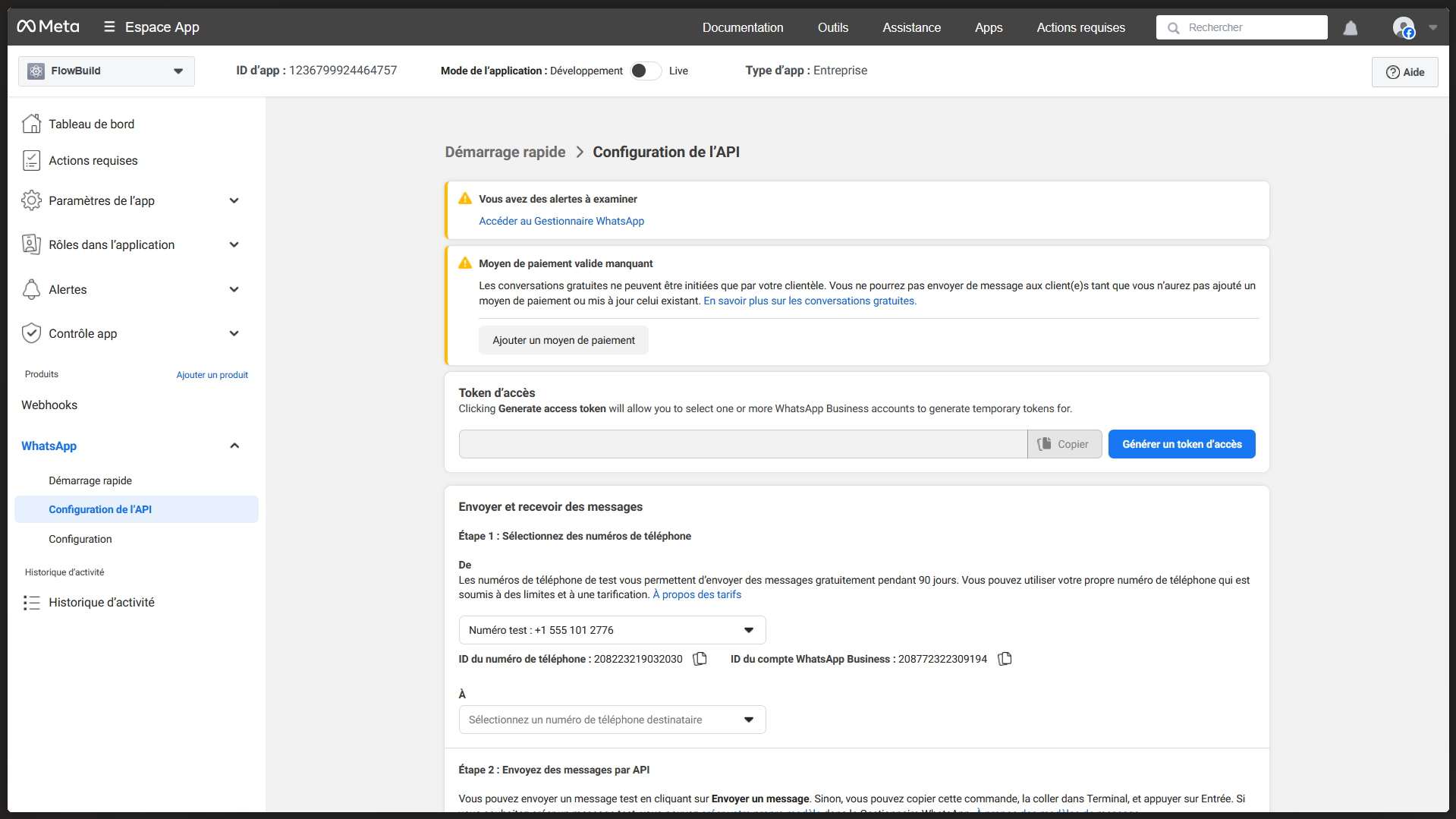
- In the app dashboard, navigate to 'WhatsApp' > 'Settings'.
- Add a phone number and register it to get a
phone_idandbusiness_id. - Generate a
token(system user access token). - Copy the Temporary access token (valid for 24h) and the Phone number ID.
Note
Attention
If you haven’t connected a real phone number, you can use a test number provided by Meta. You can send messages to up to 5 allowed numbers. Add them in the Manage phone number list.
-
Verify Profile in FlowBot
- Log in to the FlowBot platform.
- Go to 'Settings' under your account.
- Enter the
token,app_id,app_secret, andphone_idin the WhatsApp integration section. - Save and verify the connection. A success message confirms integration.

For detailed guidance, refer to the WhatsApp Cloud API Setup Guide.